Signing in, and what you are looking at
Sign in, understand the three kinds of account, and learn what every part of the daily report screen is for.
Daily Audit opens on one screen: the day's report. Everything else — the dashboard, the actions register, the settings — is reached from it. This article is about that screen, because once it makes sense the rest follows.
The three kinds of account
| Entry | Fills in the day: marks the checks, types the figures, adds observations and photographs. This is the person at the counter or in the office each morning. |
|---|---|
| View only | Reads the finished report and the dashboard. Cannot change a figure, and cannot reach Settings. This is the account you give an owner or a client. |
| Super admin | Runs the whole service — customers, people, and the operator console. Not something a customer uses day to day. |
If a button described here is not on your screen, you are probably signed in as View only. That is by design: the read-only copy has no way to change the audit, so the controls that would are not there rather than disabled.
The report screen
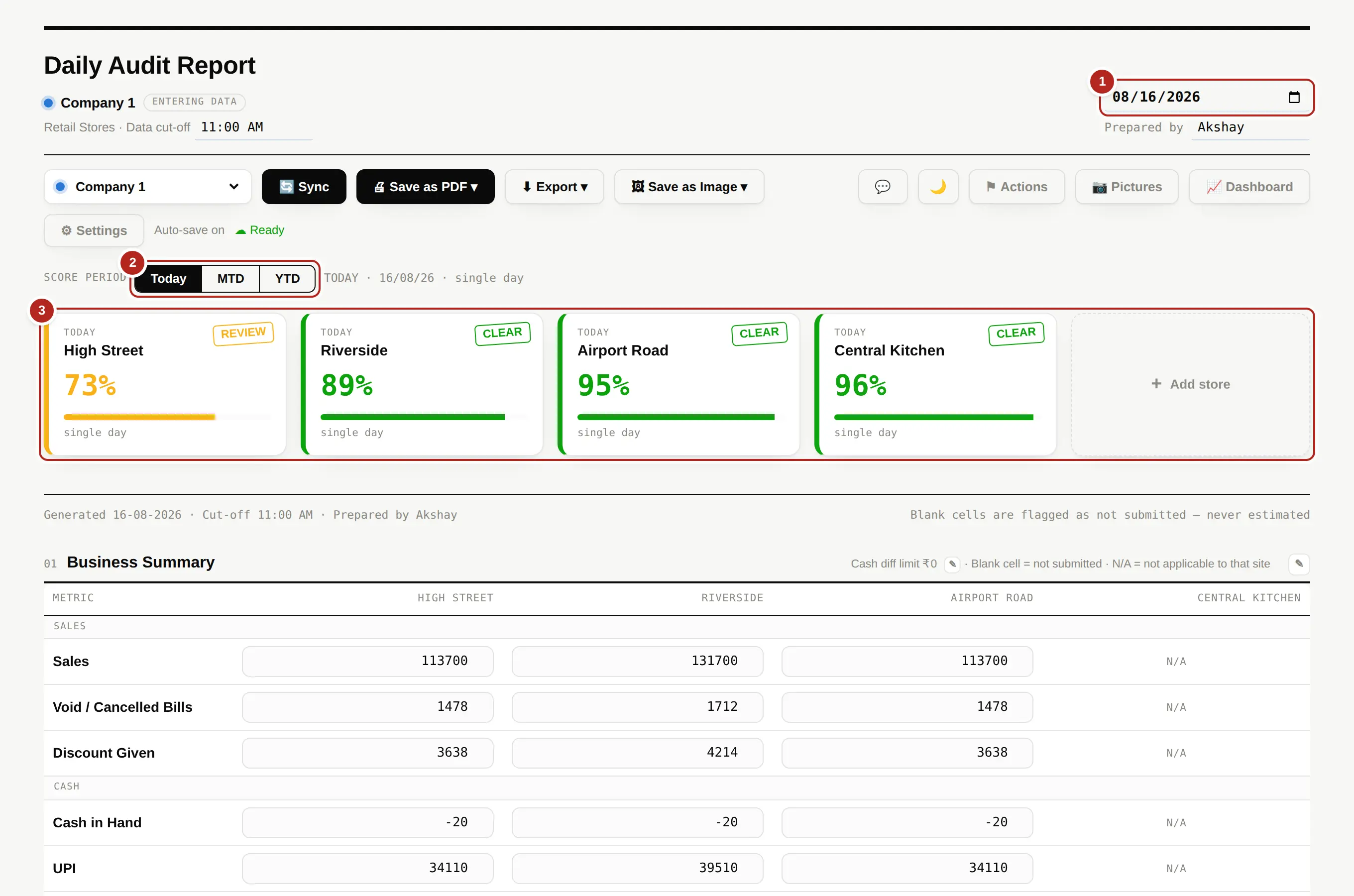
- Check the date at the top right. It opens on today; change it to look at, or fill in, another day.
- Pick the period. Today is the single day. MTD and YTD add up the month or the year so far, and some sections that only mean anything for one day hide themselves when you do.
- Read the cards. One per site: the score, and a word — CLEAR, REVIEW or FLAGGED. Click one for the breakdown of how that score was reached.
The toolbar

| Sync / Refresh data | Sends what this device has changed and brings back what other devices changed. On a view-only account it only brings things back. |
|---|---|
| Save as PDF | The report as a document, for sending or filing. |
| Export | The figures as a file you can open in Excel. |
| Save as Image | A picture of the report, or of chosen sections, for WhatsApp. |
| Actions | The corrective action register. The number beside it is how many are still open. |
| Pictures | Photographs attached to this day as evidence. |
| Dashboard | The management view across all sites and a range of days. |
| Settings | Stores, checks, thresholds and everything else. Entry accounts only. |
What to do next
Read Doing a day's audit, which is the job this software exists for.